Hosting Capacity
The hosting capacity calculation indicates how much additional load or generation power [kW] can be added to any connection point before reaching the operational limits of the grid.
Calculation
The hosting capacity calculation itertively increases the power of additional load or generation at a bus. At each iteration a Power Flow calculation is run and the operational limits of the electrical components are checked. The hosting capacity of a bus is the additional power that can be added before any of the operational limits are violated. This is repeated for all buses.
Details
Example: assuming the line loading threshold is set to 80%, the hosting capacity of a bus x is 50kW and it is limited by the loading of line y. If you add a generator with 50kW to bus x and run a power flow, the line loading of line y will be 80% (or slightly less, see section convergence threshold.)
INFO
The setpoint of grid controllers such as on-load tap changing transformers, voltage regulators and voltage-dependent reactive power characteristics is computed before the hosting capacity calculation. The state of the controllers in this operating point is used for the subsequent hosting capacity calculation - they are kept constant.
This prevents the additional load/generation from taking up all flexibility provided by the grid controllers.
Settings
Click on at the top of the page to change the settings of the hosting capacity calculation.
The settings are saved for the current calculation. Reloading the page will restore the default settings for this project. Click to run the Hosting Capacity calculation with the current settings.
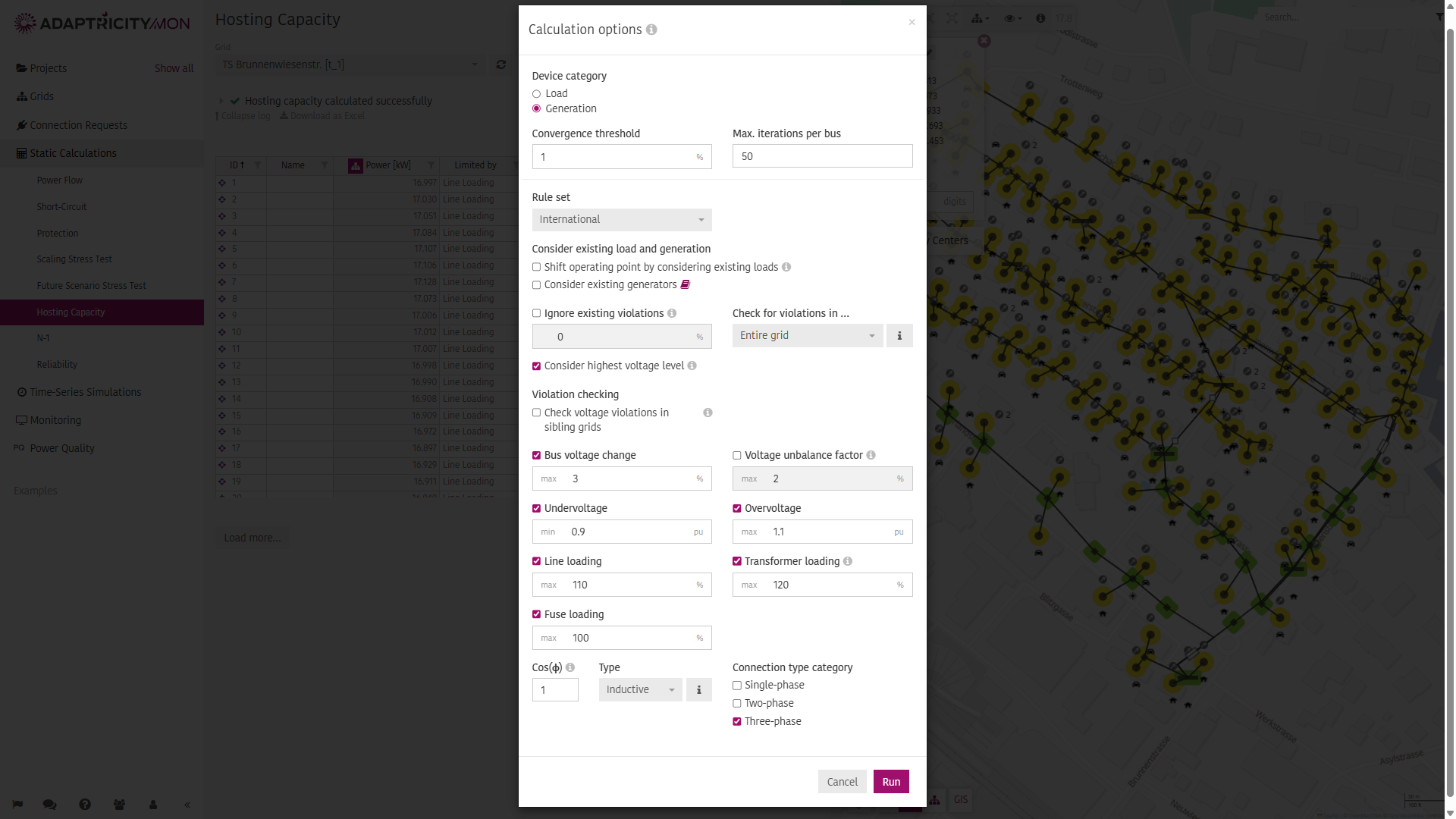
Device Category
Choose which device category should be considered during the hosting capacity calculation:
- Load: evaluate for loads
- Generation: evaluate for generators
Convergence Threshold
The convergence threshold defines the violation-range, where the algorithm converges.
Details
Example: If the voltage rise threshold is set to 5% and the convergence threshold to 3%, the algorithm converges when a power was found that causes a voltage rise between 4.85% [=(100%-3%)*5%] and 5%.
Max. Iterations per Bus
To limit the runtime of the algorithm, the number of power flow that are calculated to find the hosting capacity of 1 bus in the grid is limited. This is necessary as sometimes either the defined limits, or the grid parameters cause the algorithm to not find a valid result in reasonable time.
Details
Example: In a 500-bus grid with a per-bus-limit of 20 power flows, the maximum number of power flows is limited to 10'000.
Rule set
The evaluation can be carried out according to different rules:
- International is the one recommented in general.
- Spain is based on spanish regulations published by the CNMC.
Consider Existing Load and Generation
If the settings are off, existing loads and generators are ignored when calculating the hosting capacity. As such, the grid might have more capacity left for additional power than with existing loads/generators.
For more details how it affects the calculation of the voltage change, check Consider Existing Load and Generation.
INFO
This setting will not be considered, if load situations are used.
Grid
The hosting capacity calculation is run on a single grid at a time. Choose the grid that you want to calculate from the Grid dropdown list.
For small grids the hosting capacity calculation starts automatically. The hosting capacity calculation can be started manually by clicking .
Grid Upgrades, Connection Request and Scenarios
Grid Upgrades and Connection Requests are applied to the grid by default depending on their status. They are part of the grid model for the duration of the simulation. The selected Grid Upgrades and Connection Requests are visualized in the grid.
To change the default selection, just select or deselect the desired add-ons from the list. The selection is saved for the duration of the session, even when navigating to other simulations within the Adaptricity software. Reloading the page or clicking on the refresh button will restore the default selection.
Scenarios and Load Situations are never applied by default. They need to be specifically selected.
WARNING
A hosting capacity calculation can only be run if the grid is consistent.
INFO
If any grid upgrades or connection requests cannot be applied to the grid (for example, because a grid element no longer exists), then they are deselected and a warning is shown stating the reasons why they could not be applied.
Results
The Hosting Capacity results are visualized in the results table and in the grid viewer.
A print friendly output can be created by clicking at the top of the page.
The result can be exported as an Excel workbook by clicking on .
If Adaptricity.Connect is configured, the results can be sent to .Connect by clicking on . Existing results of that grid will be replaced.

Results Table
The Hosting Capacity results for all buses are shown in the results table.
For each bus, the hosting capacity (in kW) for additional load or generation will be shown.
The results in every column can be visualized in the grid viewer by clicking next to the column name.
For each result, the limiting electrical component (i.e. the component that limits the hosting capacity at that node) in the grid is also output. Clicking on will center the grid viewer to that element.
More columns can be added to the table by clicking on .
TIP
- Sort the table by descending or ascending values by clicking on the column name.
- Filter the table by condition or by specific values by clicking next to the column name.
- Center the grid viewer on a bus by clicking on next to the element's ID.
INFO
Note that the results show the hosting capacity on all nodes in the grid all at once. This does not mean that the resulting power values can be installed in the grid all at once. Instead, it is the hosting capacity of a node under the assumption that additional power is only added to that node.
If a load or generator is installed in the grid, the hosting capacity simulation needs to be re-run because the hosting capacity of the grid changes.
Comparing Results
Click next to the button to save the current hosting capacity result (Keep Result).
Hosting capacity results created with varying settings can be saved in this way. This allows for later comparison.
Click on Show Results to define which hosting capacity results should be compared.
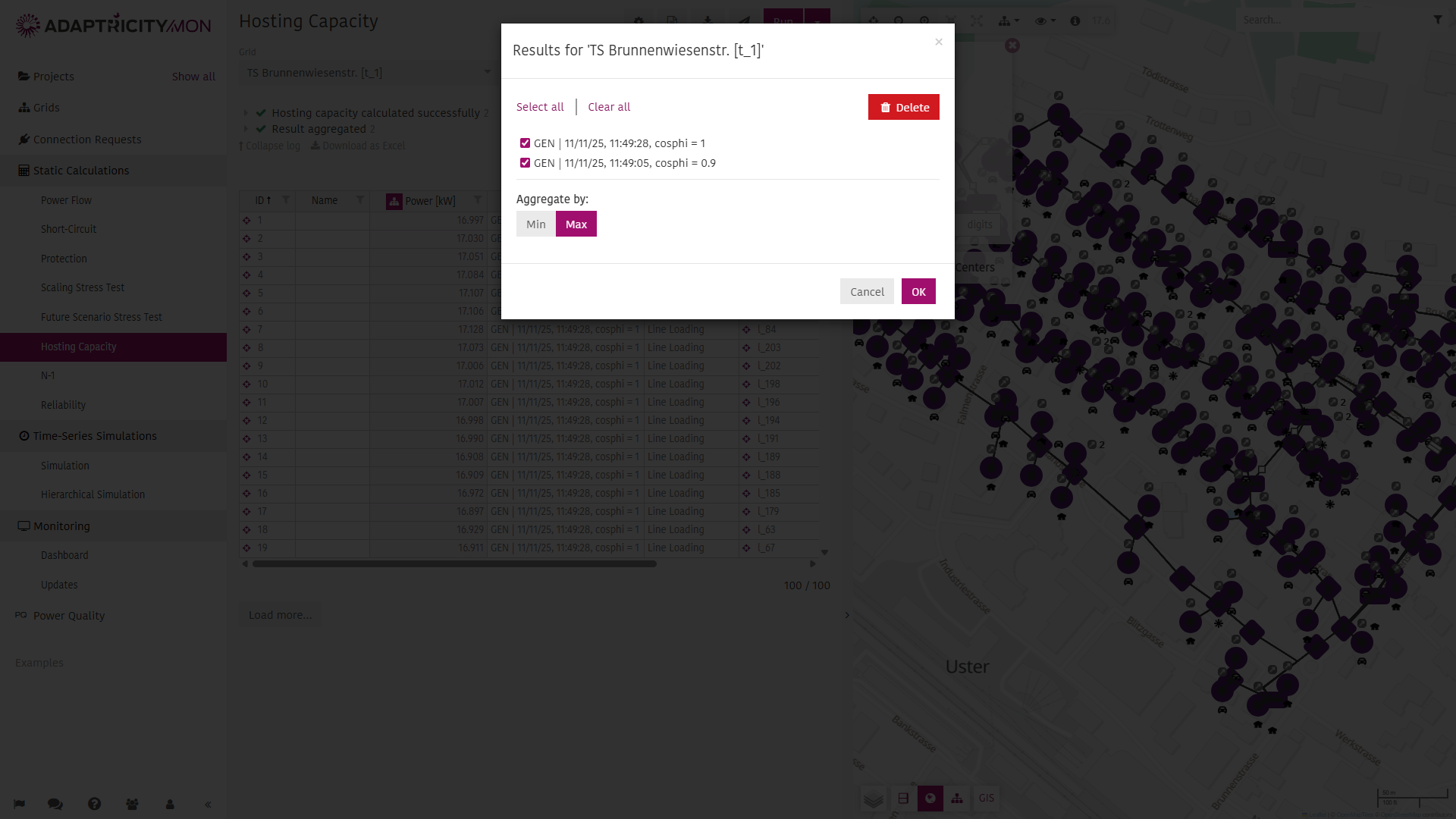
The selected results can be aggregated by minimum or maximum hosting capacity. Clicking will updated the Results Table showing the minimum or maximum hosting capacity among all selected results and a new column Result from indicating the result's origin.
Grid Viewer
The grid viewer will color the buses based on the selection in the Results Table. A standard color scale will be applied. The scale can be edited by clicking the icon next to the variable name. Clicking on will show the results next to the buses.
Clicking on a bus in the grid viewer reveals the Hosting Capacity results for that bus on the right.